

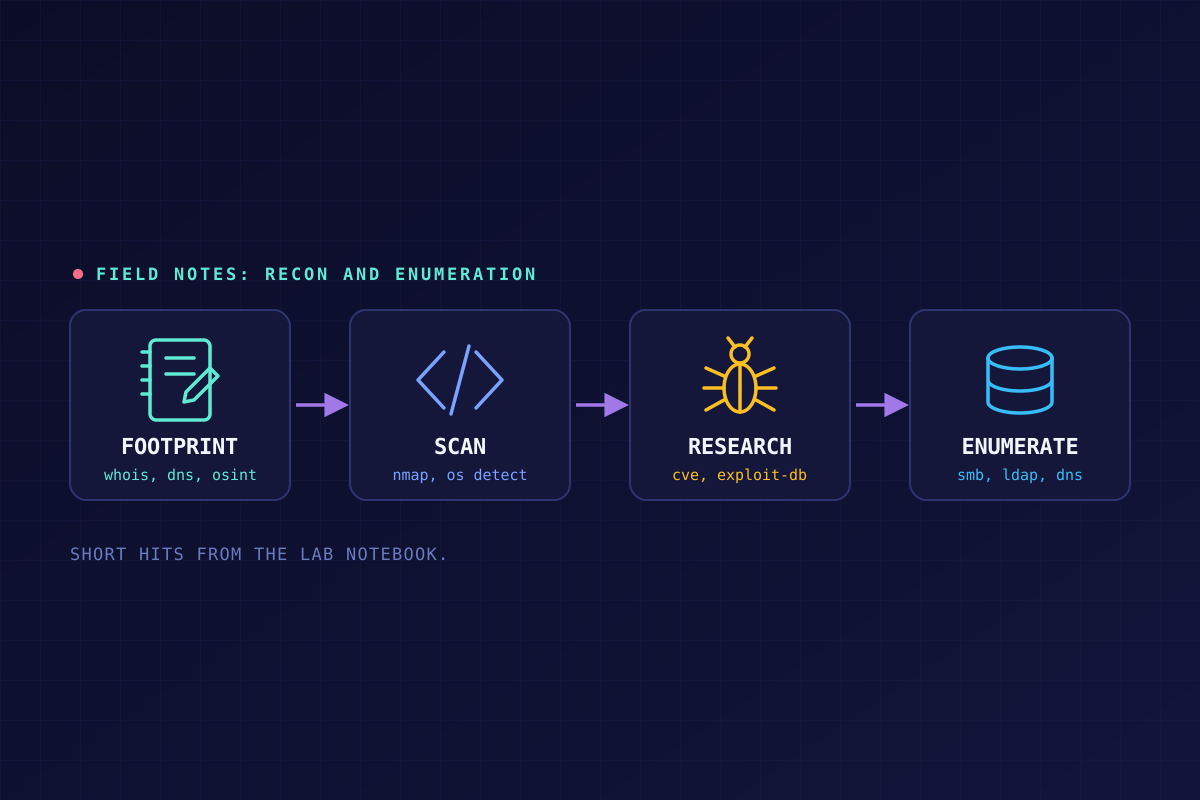
Field Notes: Finding the OS with Nmap
Three nmap flags, three different jobs — and one command I actually reach for first.
Once you have a target IP or domain, nmap can tell you a lot: the operating system, the services running and their versions, and which ports are open. Here's the quick version of how the OS-detection side works.
The commands, and what each one does:
nmap -A [Target IP]— Enables OS detection, version detection, script scanning, and traceroute in one pass. It's a solid all-in-one for basic banner grabbing.nmap -O [Target IP]— OS detection only, without the extras.nmap --script smb-os-discovery.nse [Target IP]— Runs a script that queries SMB (ports 139/445) for the OS, computer name, domain, workgroup, and current time. This only works if SMB is running and accepts the connection, including from an anonymous session in some configurations.
All three are useful on their own. My actual go-to, the one in my notes as a first-run command, combines two of them:
nmap -sV -O -A [Target IP]
If you're already running -O and -A for OS and banner detection, adding -sV for service version detection is close to free. Both -sV and -O also take intensity modifiers, so you can dial detection up or down depending on how noisy you're willing to be.
Why bother with OS and version detection at all? Vulnerability discovery. Knowing exactly what's running — not just "Windows," but which build, and which service version — is what turns a scan into a lead. Outdated or unpatched software is the soft spot, and you can't look for it without knowing what you're looking at. It all comes back to enumeration: find out what's there before deciding what to do about it.
The Takeaway
OS and version detection isn't the attack. It's the step that tells you whether there's an attack worth planning. Skip it, and you're guessing.